

Ok, so you’ve put time into crafting a beautiful 3D model, so don’t let slow load times, low FPS or lagginess be the reason someone bounces before they even see it. Whether you’re building a slick product viewer, a marketing campaign in AR or an interactive experience, performance is everything. A heavy model equals slow rendering which can all-too-often result in lost engagement.
In this blog, we’ll walk through practical ways to optimize your 3D files for the web, and also highlight a few options for tools that make that easier.
1. Choose the Right File Format (Hint: It’s .glb)
Let’s start with the basics. .glb is a lean, mean, render-ready format that packs everything (geometry, textures, animations) into one tidy binary file. Compared to .obj or .fbx, .glb is faster to load, easier to manage and far more web-friendly. In this new world of web-based AR/VR and 3D experiences, these file traits are super important.
Not using .glb yet? Switching over is like trading in your 2004 hatchback for an electric bike… Lighter, smarter, and way more efficient.
2. Trim the Geometry Fat (Without Losing Detail)
Every extra vertex adds weight. So unless you’re building a AAA game, most web experiences don’t need models with ultra-high poly counts.
Quick benchmark:
- For AR or web viewers, you should typically aim for 5K–50K triangles
- For desktop interactive experiences, you can increase this up to 100K if necessary
- If your models are sitting at the 250K+ level then it might be time to simplify, to be totally honest
Use Scene Analysis to Catch the Culprits
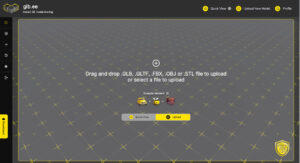
Some model viewers (like glbee) give you a handy “Analyze” view, a real-time breakdown of triangle counts, texture sizes and what’s bloating your file. Think of it like a health check for your 3D model.
For Example: You might think your model is lightweight, but those 4K textures are quietly weighing it down like a backpack full of bricks.
3. Downsize Those Textures (Please)
Here’s the deal: a single 4K PNG texture can be larger than your entire mesh.
Some good rules of thumb:
- Try resizing textures to 512–1024px where possible
- Use JPEG or compressed formats like Basis Universal to optimize further
- Stick to power-of-two resolutions (e.g., 256, 512, 1024) to give end-users’ GPU a break
Some tools even flag textures that break this rule (lookin’ at you, yellow triangle in glbee). If you spot one, it’s probably time to hit “Export As…” again.
4. Ditch the Extras: Animations, Lights, Cameras
If you’re exporting from programs like Blender or Maya, you might accidentally bring the whole kitchen sink with it (Elon Musk style). Extra animation tracks? Unused cameras? A directional light you forgot existed? Kill ’em.
A clean export = faster loads, fewer bugs.
Some platforms show you this clearly, for example, glbee’s viewer, lets you see if hidden extras are inflating your model before it even hits your user’s screen.
5. Think Like a User on 3G
Okay, unless you’re in the middle of nowhere in the UK or in the sticks of Utah, then maybe not literally 3G, but you get the point. Always test your models on:
- Lower-end devices
- Mobile browsers
- Slower connections
Google offers a useful throttling tool within their Developer Tools menu which gives you the option to throttle your internet connection to test loading speeds on varying internet speeds.
The gold standard? Instant AR previews via QR codes (no app needed). They’re great for gut-checking how models feel in real-world contexts and catching mobile performance issues before your users do.
Bonus Tools That Make This Easier
Here are a few friendly tools for optimization (besides just squinting at your screen):
- glTF Validator
- MeshOptimizer
- Draco compression
- Built-in analysis tools like glbee’s Analyze tab and Warnings system
Final Thoughts: Lighter Models = Happier Viewers
Optimizing your 3D models doesn’t have to mean sacrificing quality. It’s about being intentional and keeping the detail where it matters, trimming what doesn’t and using tools that help you catch issues early.
If you’re juggling lots of assets or clients, using a model viewer that flags performance issues, highlights texture sizes, and gives you quick access to AR previews (without touching code) makes life easier.
glbee quietly handles all of that in the background, so your audience only sees the good stuff. Try it yourself over at glb.ee.